How to do a weekly review in 20 minutes (template included)
A weekly review template that fits in 20 minutes: capture loose ends, review what moved, and pick next week’s top three. With the flo screens that do the counting for you.
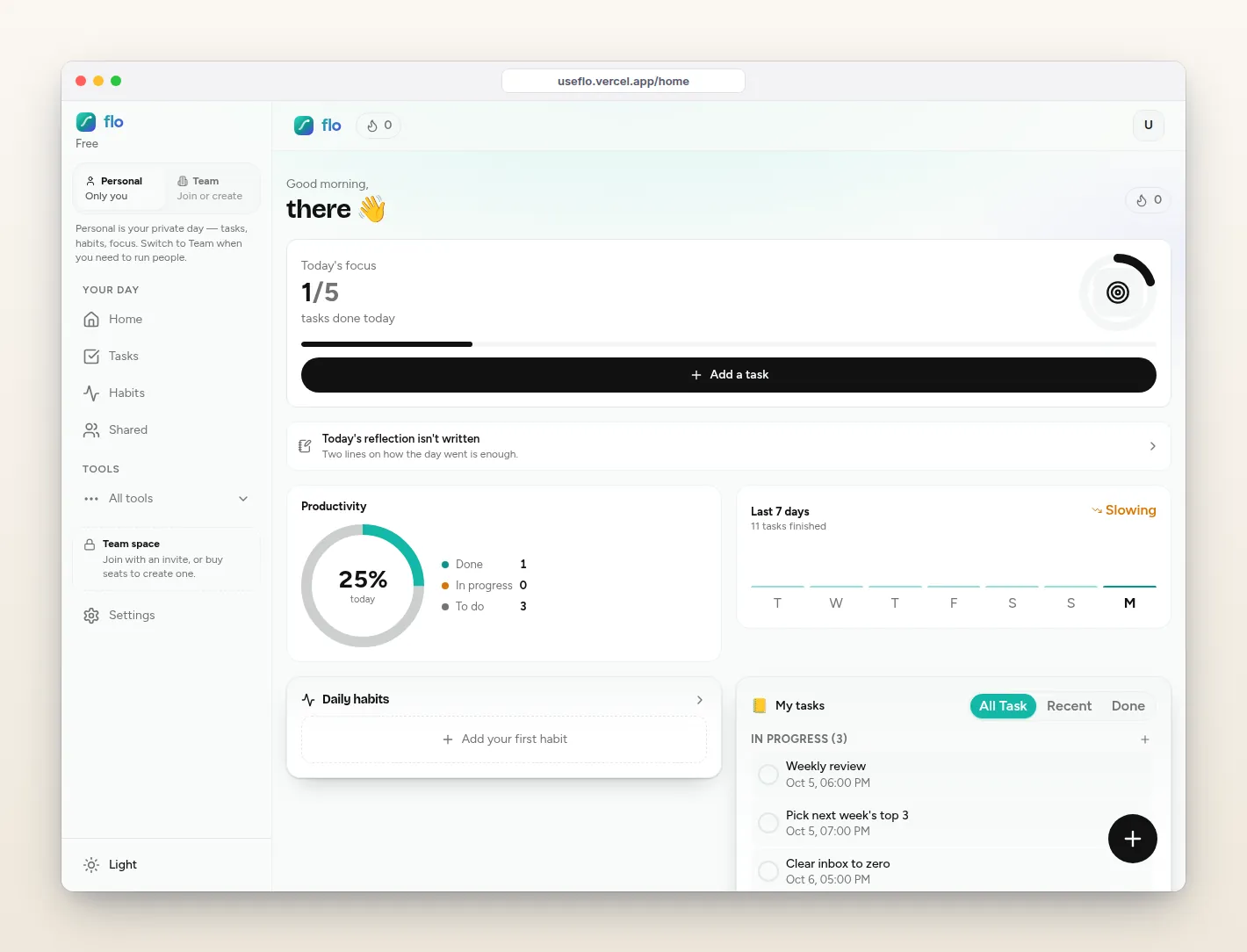
A weekly review is the habit that keeps every other system honest. Without one, your task list slowly fills with things you will never do, and Monday starts with guilt instead of a plan.
Most weekly review templates ask for an hour. This one fits in 20 minutes, in three parts: capture, review, plan. Each part below says what to do and where flo already has the numbers.
When to do it
Pick one slot and protect it. Friday afternoon works if you want to close the week. Sunday evening works if you want to open the next one. Same time each week matters more than which time.
Part 1: Capture (5 minutes)
- Empty your head. Every loose thought goes into Tasks with Quick Add, or paste the lot into Structure with AI.
- Sweep notes, messages and email for promises you made this week.
- Do not sort yet. Capture only.
Part 2: Review (7 minutes)
Look at what you finished
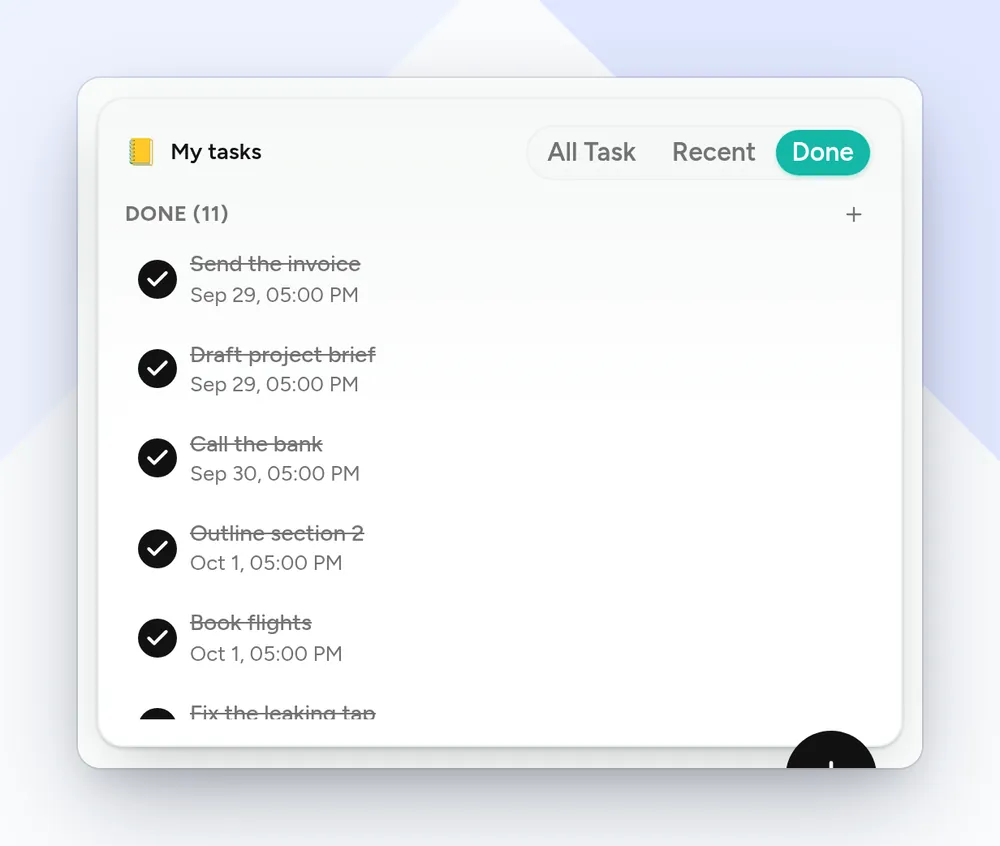
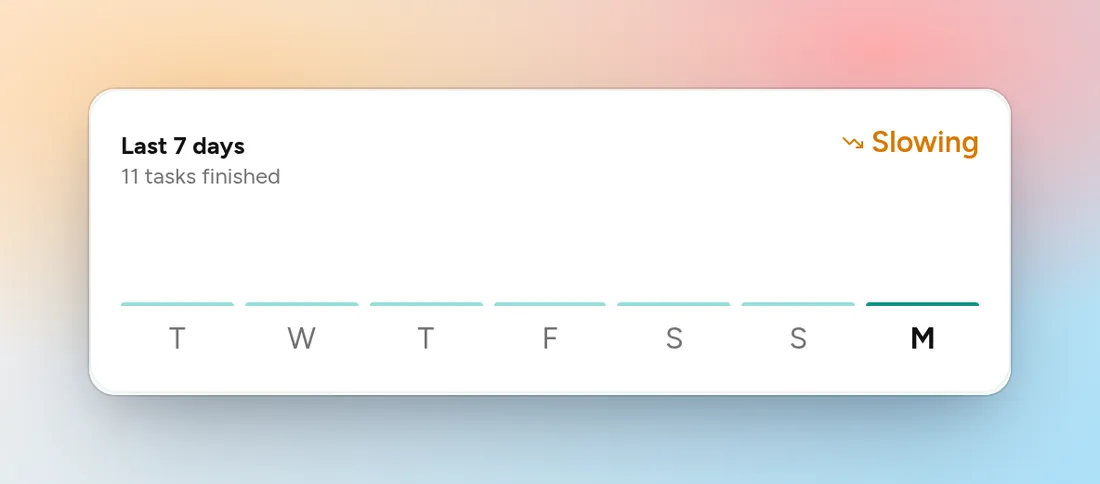
Filter Tasks to completed. On Home, the Last 7 days card counts the tasks you finished this week and says whether you are picking up or slowing down, and the Done tab of My tasks lists them with dates. Write down one or two wins.
Check the goal, not just the list
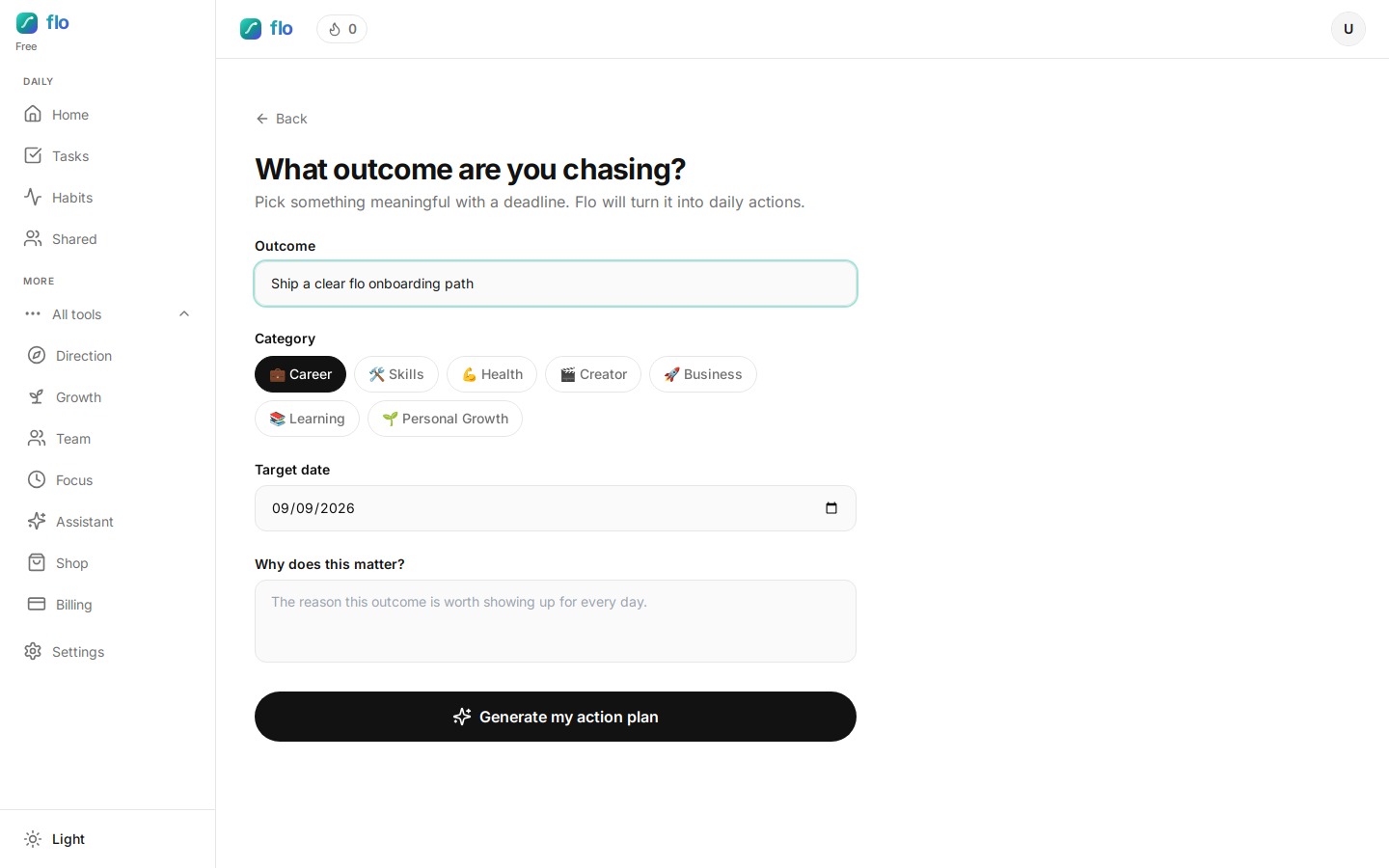
If you have a Direction outcome, open it. The weekly review card shows the trend for the last seven days and three lines: what is working, what is slowing progress, and a suggestion. That is the question a to-do list cannot answer: did this week move the goal?
Prune the active list
Go through active tasks once. For each: do it next week, give it a date, or delete it. Anything that has survived three reviews untouched should probably go.
If you log time, compare planned and actual
On Pro, the Time page has a weekly and monthly view and a planned-vs-actual comparison. If “two hours” keeps turning into five, plan less next week.
Part 3: Plan (8 minutes)
Apply the Weekly Planner template
From Templates, apply Weekly Planner. It adds: review last week and note wins, pick top 3 priorities for this week, schedule deep work blocks, clear inbox to zero, and plan next weekend, each with a sensible priority and date.
Choose three, and only three
Mark next week’s three most important tasks High and give them dates. Everything else is Medium or Low. If you could only finish three things, which would make the week a good one?
Make the review repeat itself
Create a task called “Weekly review”, turn on Daily, and set the reset to weekly. It comes back every week without a calendar reminder. Daily Tasks are on Pro and above.
The template, copy-ready
- Capture: everything out of my head and into Tasks.
- Wins: two things that went well this week.
- Goal: is the trend rising, flat, or falling? What slowed it?
- Prune: do, date, or delete every active task.
- Plan: three High tasks for next week, each with a date.
- One change: what will I do differently? (Direction’s daily reflection asks the same: what will you improve tomorrow?)
FAQ: weekly reviews
How long should a weekly review take?
Start with 20 minutes. If it regularly runs past 30, you are reorganizing rather than reviewing. Cut back to capture, three priorities, and one change.
What if I skip a week?
Do a short one next time: capture and pick three. The value is in coming back, not in a perfect record.
Do I need Pro for this?
Not for the core review: Tasks, Home and one Direction outcome are on Free, though Free holds only 3 tasks. The Weekly Planner template adds five tasks, which is more than Free holds, and the Time page and a self-repeating review task need Pro.